First Time Setup
- Download My Dial from the App Store
- Open the app and grant contacts permission when prompted
My Dial transforms your iPhone into a fast, easy-to-use speed dial screen. Here's everything you need to know to get the most out of the app. The start screen with no contacts added is shown below.
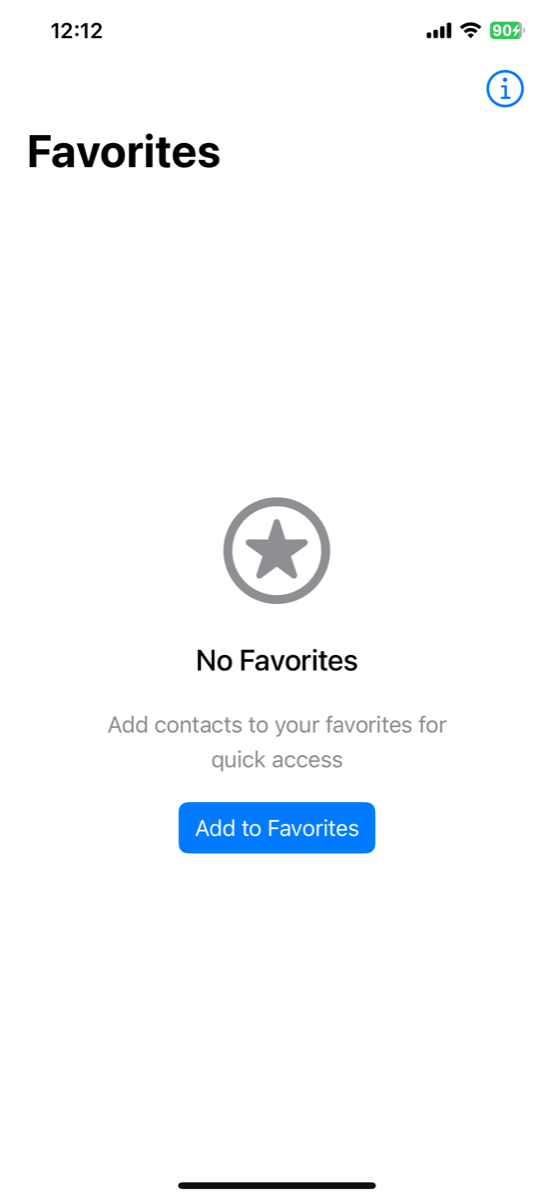
Allow the app to access your contacts and select all contacts.
User Permissions Requested
My Dial may request the following permissions. You can grant or deny each when prompted:
- Contacts – Required. Used to display and manage your favorites (add contacts, show names and numbers).
- Camera – Optional. Used only when you take a photo for a contact picture (Gallery, Camera, or Canvas).
- Microphone – Optional. Used only when you record a voice name for a contact (microphone icon in the contact configuration screen).
- Notifications – Optional. Used only when you enable "Always Bring to Focus" in the info menu; the app can then send a reminder to return to My Dial when you leave the app.
Adding Contacts
- Tap "Add & Edit" in the top left corner
- Tap the "+" button to add your first favorite contact
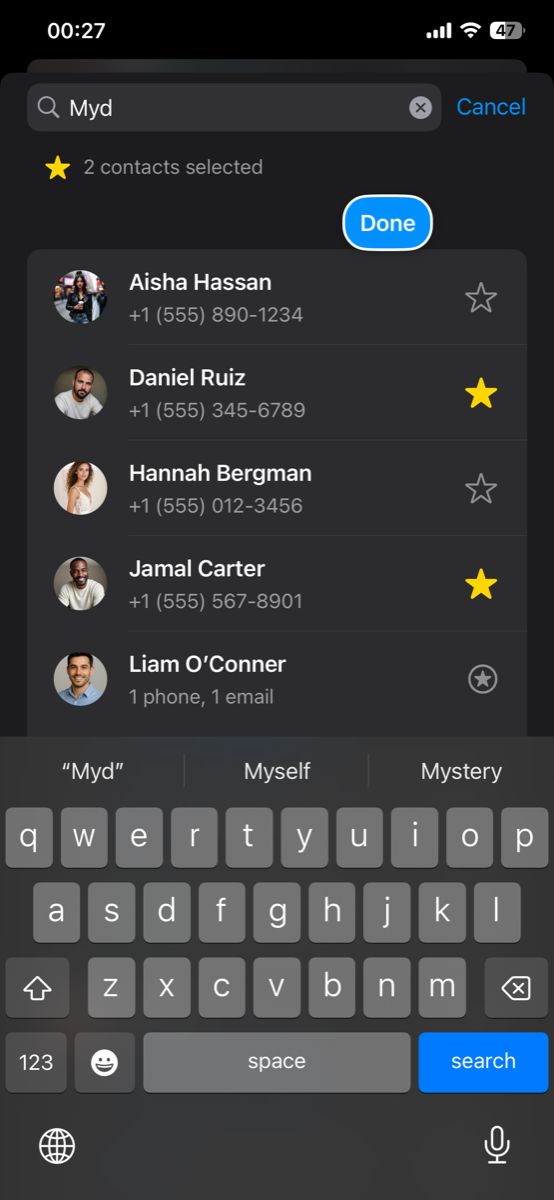
- Search for a contact and select them
- If they have multiple numbers, choose which one to use
You can add multiple contacts in one session:
- Search for a contact by name
- If the contact has multiple numbers:
- For single-number contacts: They're added automatically
- For multiple numbers: Select which number to use
- You can add the same contact multiple times with different numbers or communication methods
- Tap "Done" to save when finished
Customizing Your Contacts
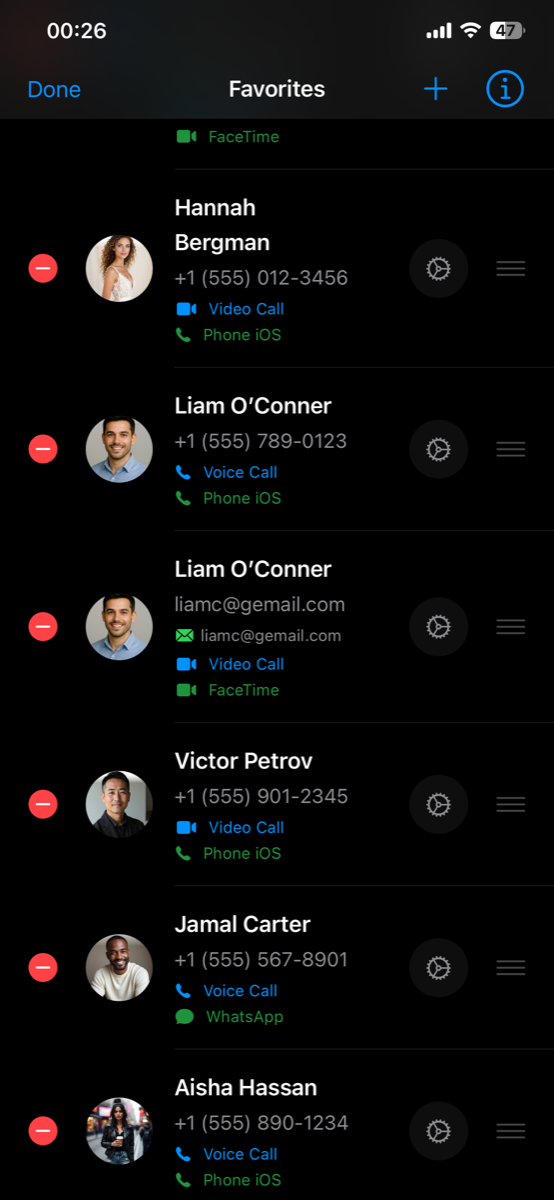
After adding a contact, you can customize them. Tap the gear icon next to any contact in edit mode:
Call Type:
- Voice Call – Make a phone call
- Video Call – Start a video call
- Text Message – Send a text message
Using App:
- Phone iOS – Use built-in iPhone calling and messaging
- WhatsApp – Call or message via WhatsApp
- Telegram – Use Telegram for communication
- FaceTime – Make FaceTime audio or video calls
- Signal – Use Signal for secure communication
- Viber – Call or message via Viber
- The relevant app must be installed to appear on the list
Display Name:
- The Display Name field (shown with a light blue background) is editable
- Use it to give the contact a custom label (e.g. "Mom", "Work", "Dr. Smith") that appears on the tile and throughout the app instead of their first and last name
- If you leave it blank, the contact's regular name is shown
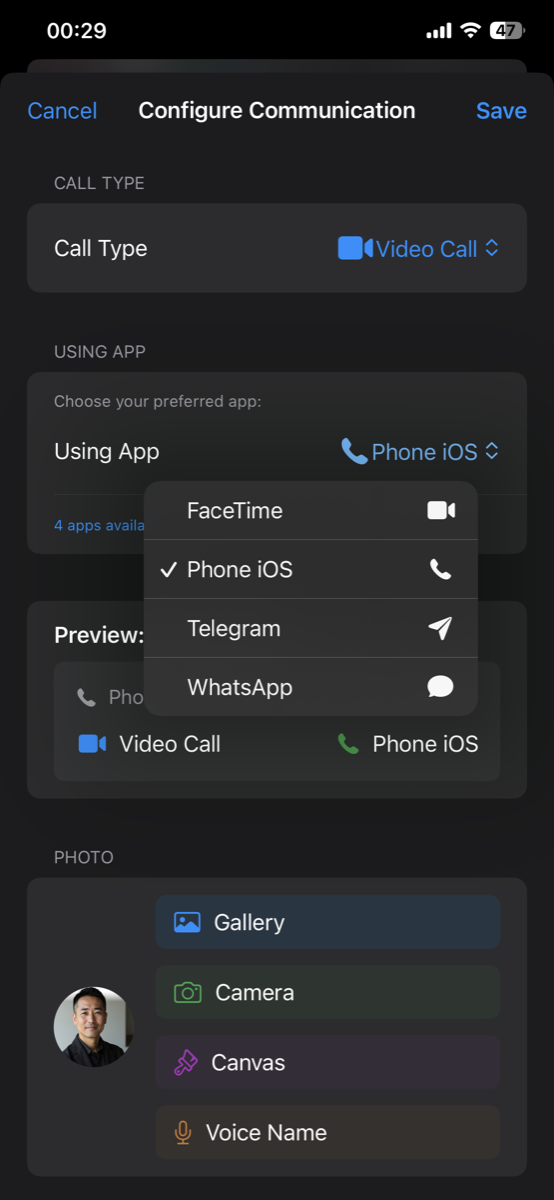
You can add the same contact multiple times with different communication methods. For example, add "Mom" once for WhatsApp calls and once for FaceTime video calls.
Adding Custom Photos
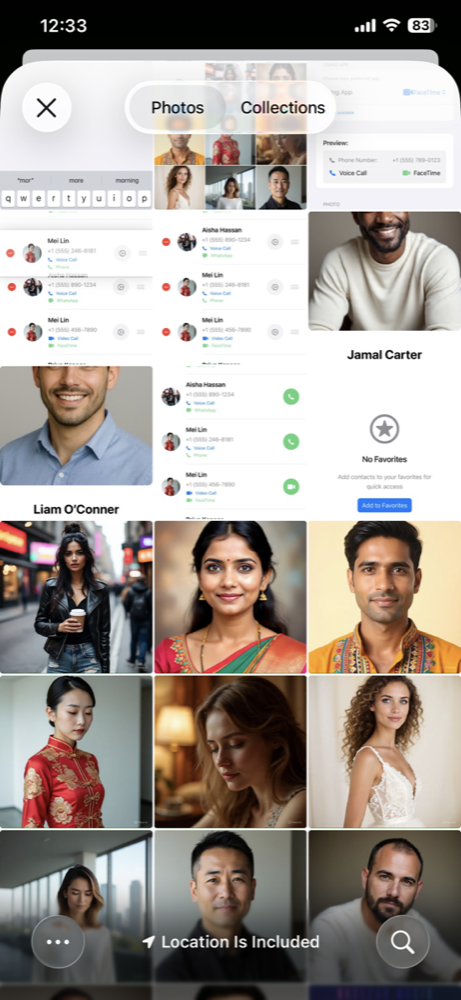
My Dial offers three ways to customize contact photos:
Gallery:
- Choose an existing photo from your photo library
- Perfect for using family photos or saved images
Camera:
- Take a new photo with your device camera
- Great for capturing current photos of contacts
Canvas:
- Create custom artwork by drawing or adding text
- Choose from 14 colors and 15 fonts
- Draw freehand or add text labels
- Perfect for creating visual identifiers
Each contact can have a unique photo, even if the same person is added multiple times with different numbers.
Canvas Drawing & Text Features
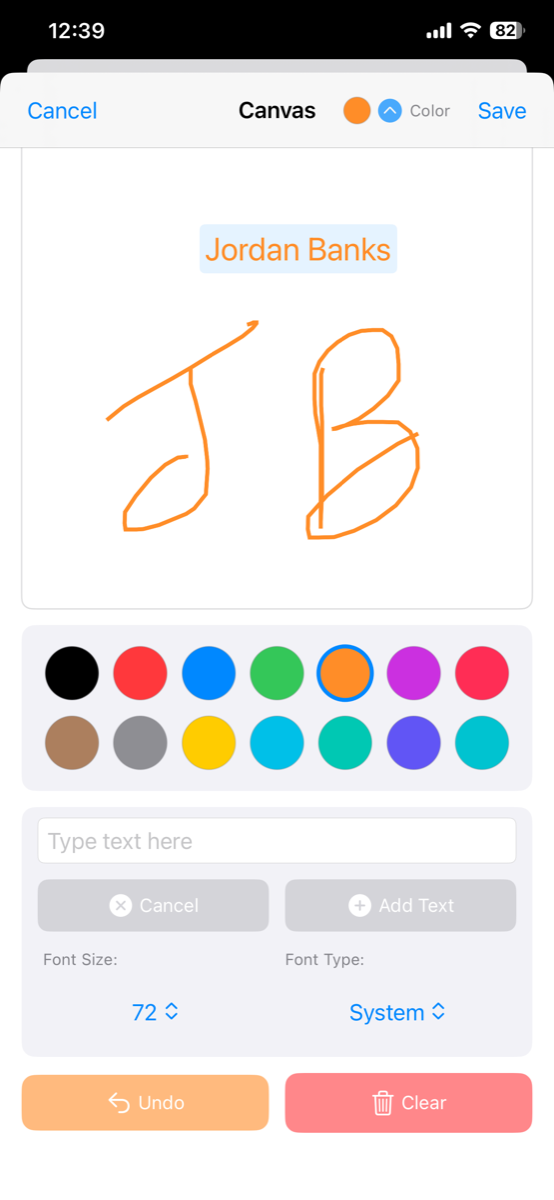
The canvas feature lets you create unique contact images:
Drawing:
- Draw freehand with your finger
- Choose from 14 colors
- Adjustable stroke width
Text:
- Add text items anywhere on the canvas
- Font sizes: 12, 16, 20, 24, 28, 32, 36, 40, 48, 56, 64, or 72 points
- 15 different fonts available
- Choose text color from 14 color options
Editing:
- Tap text to select it (blue border appears)
- Drag text items to reposition
- Edit selected text font size and color
- Undo removes the last drawing stroke or text item
- Clear removes all canvas content
Scroll arrows appear when typing to help you see all your text.
Perfect for creating visual identifiers for contacts!
Voice Names for Accessibility
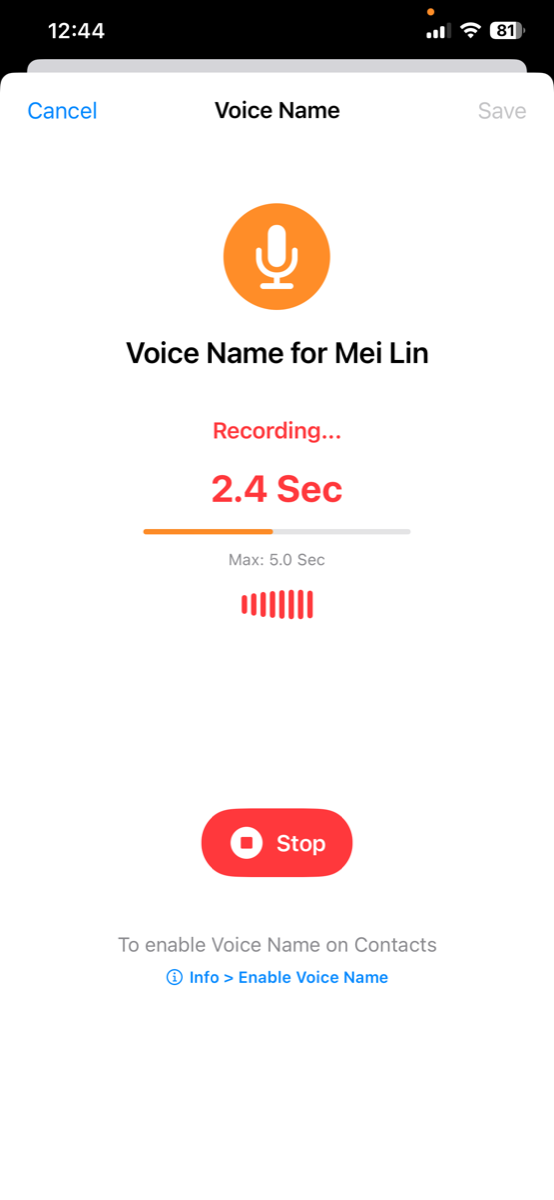
Voice names announce contacts as you swipe, making My Dial accessible for visually impaired users:
- In edit mode, tap the gear icon next to a contact
- Tap the microphone icon to record
- Record up to 5 seconds (e.g., "Calling Mom" or "This is John")
- Tap play to hear your recording
- Re-record if needed
Once done with editing, tap 'Save' to display the list of favorites
My Dial: Favorites List
To Dial: Tap any one of your favorites from the list
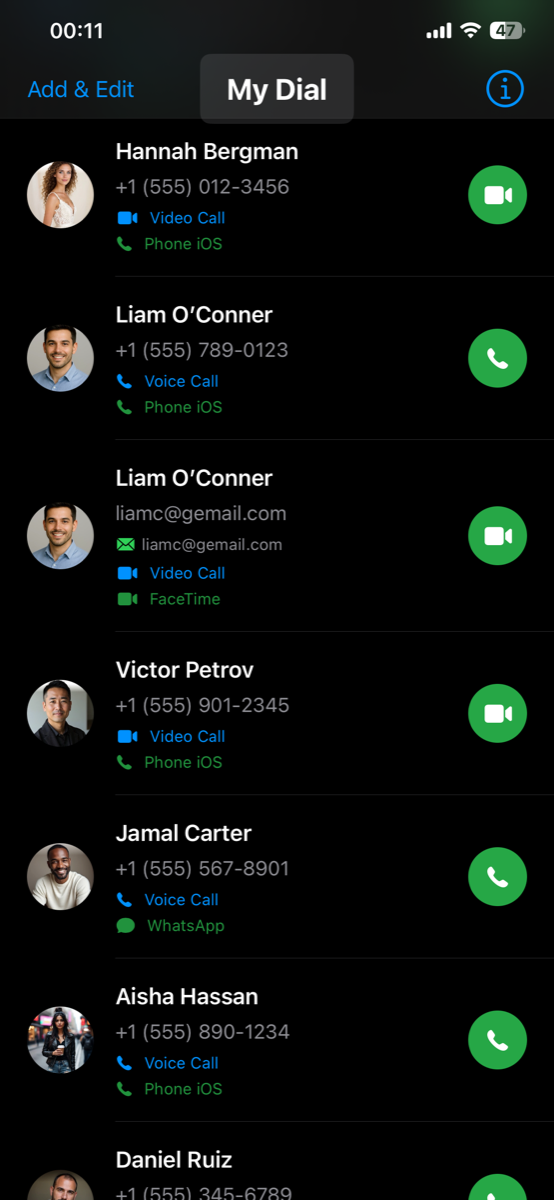
Tap the 'My Dial' button at the top of the page to navigate through each contact page by page
My Dial: Full Page Contact View
This is another primary feature of My Dial:
- Each contact is displayed on an entire screen
- Easy to identify and easy to dial
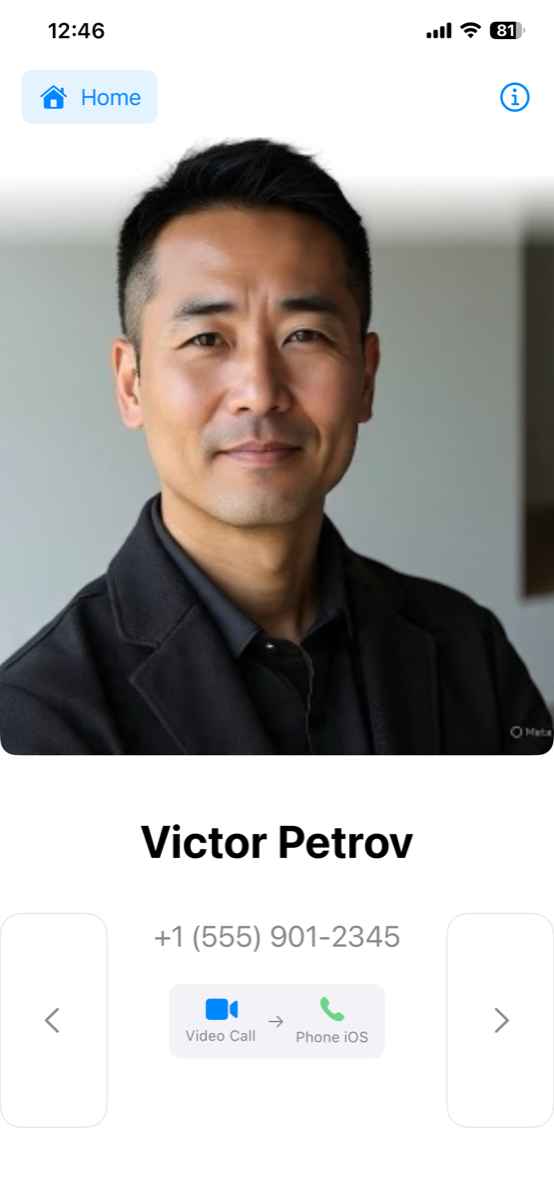
Swipe Navigation:
- Swipe left or right anywhere on the screen to move between contacts
- Large tap areas on the left/right sides for an alternate form of navigation
- Circular navigation – Tap past the last contact to return to the first
- The app remembers your last viewed contact and returns to it when you reopen the app.
Buttons:
- Tap "Home" button to return to favorites list
- Tap the contact's image or button below the number/email to dial immediately
- Tap "i" icon for the info menu (help, about, enable/disable feature, Donate)
My Dial: 'i' Page
Enable Voice Name
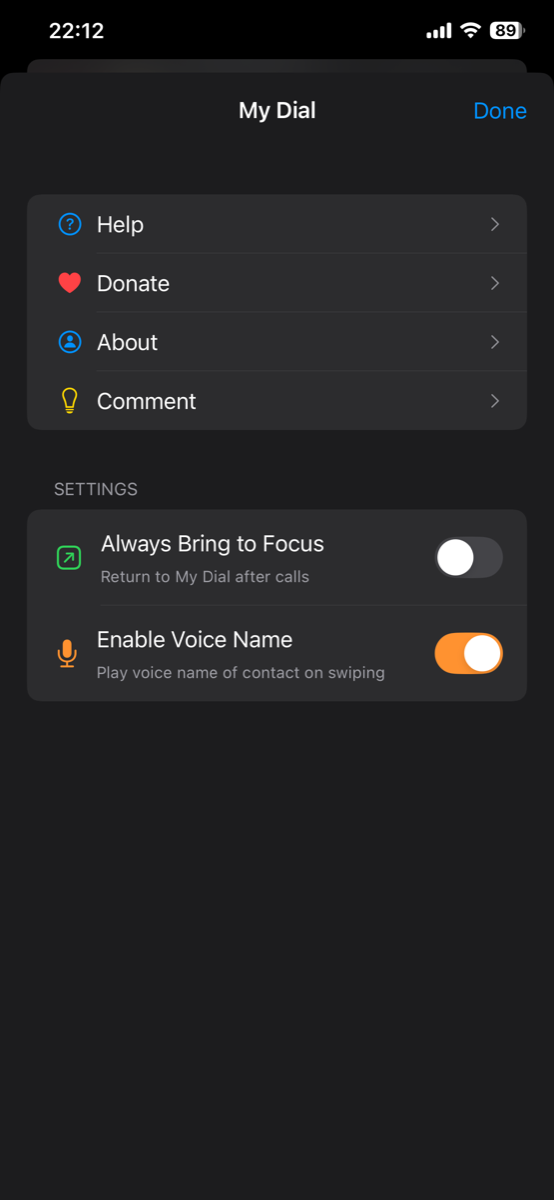
- Enable "Enable Voice Name" on this page for this feature
- When enabled, voice names play automatically as you swipe between contact pages to help visually impaired persons
- Each contact can have a unique voice name, even if the same contact is added multiple times (e.g., "Voice Call Peter" or "WhatsApp Call Peter")
Always in Focus
When using this app for elders or differently-abled people, there are two ways to ensure the app is always available and in focus:
Option 1: Enable Notification Reminders
- Enable the "Always Bring to Focus" setting in the info menu
- When the app is out of focus or closed, you will receive a notification reminder prompting "Return to My Dial"
- Tap the notification to return to the app
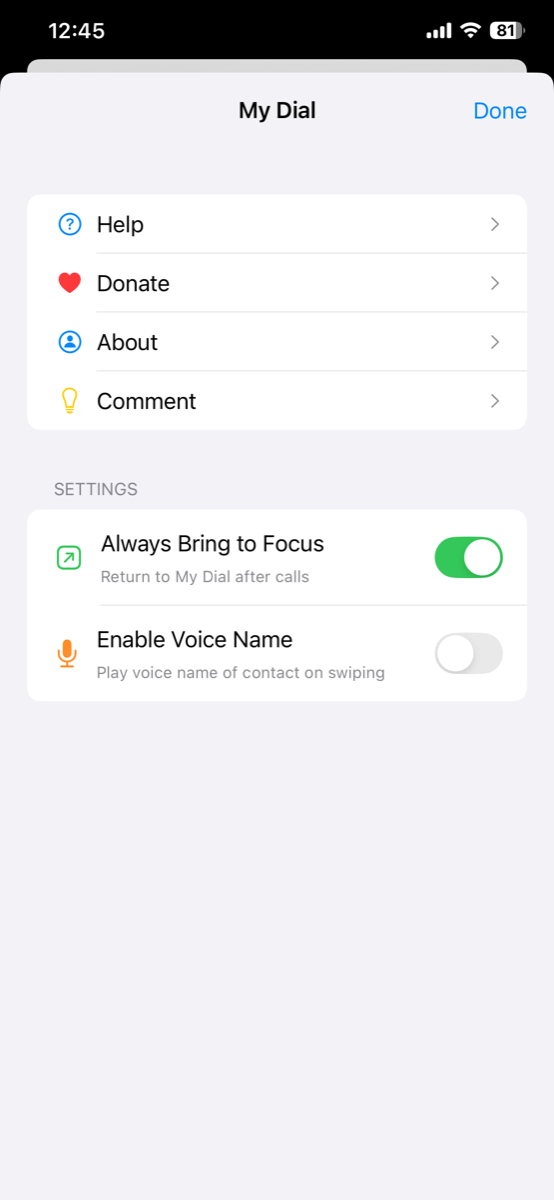
This feature is especially useful for ensuring that seniors or users with accessibility needs can easily return to My Dial after making calls or switching to other apps.
Option 2: Use NFC Tag (requires NFC tag purchase)
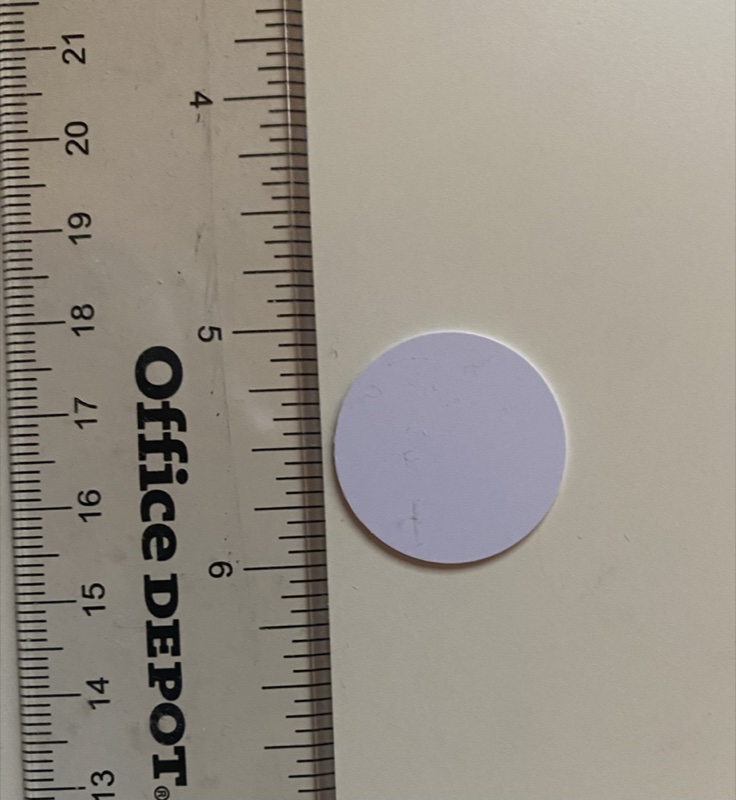
You can set up an NFC tag that automatically opens My Dial when touched. This is perfect for users who need a physical way to access the app.
No need to enable the "Always Bring to Focus" setting.
Step 1: Create a shortcut in the 'Shortcuts' app
- Open the "Shortcuts" app on your iPhone
- Tap "+ New Shortcut"
- Choose "Open App"
- Select "My Dial" app
Step 2: Create an NFC automation
- In the "Shortcuts" app, choose "Automation"
- Tap "New Automation" → "NFC"
- Enable "Run Immediately"
- Tap "Scan", then place the NFC tag near the top of your phone
- When you get a success message, name the tag (e.g., "My Dial")
- Tap "Next"
- Select the "Open App" shortcut created in Step 1
Once set up: Whenever the user touches the NFC tag with the top of their phone, the My Dial app will open to the last page/contact they were viewing.
Note: NFC tags can be purchased online or at electronics stores. Make sure your iPhone supports NFC (iPhone 7 and later).
Common Questions
Q: Why don't all my selected contacts get added?
A: Make sure you're searching and selecting contacts one at a time, then tapping "Done" when finished. The counter shows how many are selected.
Q: Can I add the same contact with different numbers?
A: Yes! Add the contact once, save it, then add it again with a different number. Each entry can have a different photo.
Q: How do I remove a contact?
A: Tap "Add & Edit", then swipe left on the contact and tap "Delete".
Q: Why isn't my voice name playing?
A: Make sure "Enable Voice Name" is turned on in the info menu (tap the "i" icon).
Q: Can I use My Dial without internet?
A: Phone calls work without internet. WhatsApp, Telegram, and other apps require internet connection.
Q: Is my data stored in the cloud?
A: No. All your contacts, photos, and data stay on your iPhone. We don't use cloud storage or servers.